Fetch app tour
Search and filter the Fetch library, browse by category, product type or market, keep favorites, and see the Fetch content in your project, all from the Fetch app inside Revit.
Fetch pluginRevit 2023–2027Updated
The Fetch app opens alongside Revit. Its tabs run down the left side, with search and the Revit version picker across the top.
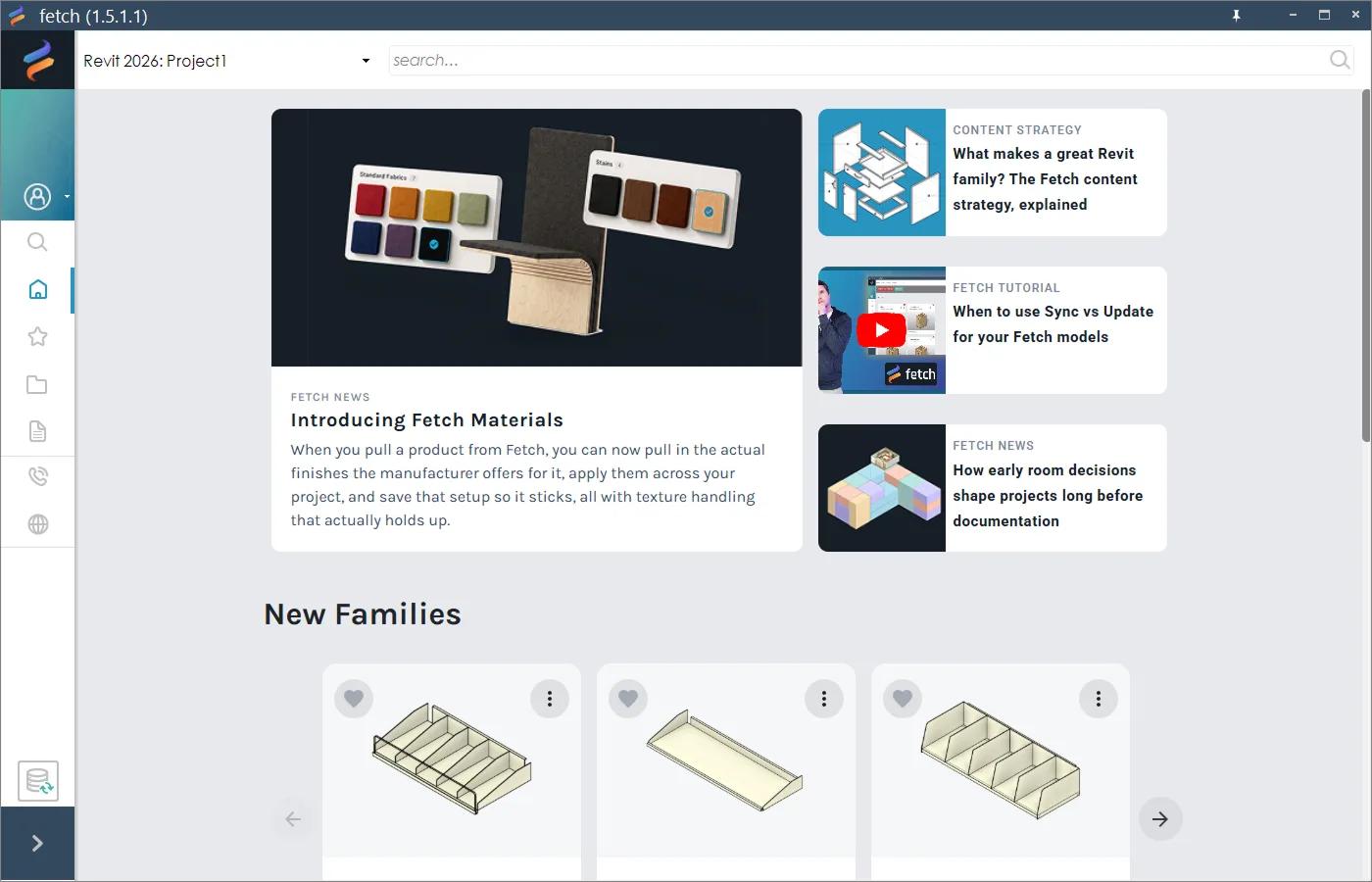
Across the top
- Revit version picker, top left. Shows which open Revit project Fetch is working with, for example "Revit 2023: Project name". If you have more than one Revit open, switch here. See Use Fetch with more than one Revit version.
- Search bar. Type and press Enter from any tab. Use Filters on the results to narrow them. See Search and filter.
The tabs
From top to bottom:
| Tab | What it's for |
|---|---|
| Account | Which account is signed in, with links to manage it or sign out. |
| Search | Search results and filters. |
| Home | The latest blog posts, then the newest families and model groups. |
| Favorites | Content you've saved, with pinned favorites at the top. See Favorites. |
| Browse | The whole library by Revit category, product type or market. |
| Project | The Fetch content in the open project. A red badge shows how many items have updates. See Update families. |
| Contact us | Opens the Fetch contact page to report a bug or a problem with a model. |
| Website | Opens fetchbim.com. |
| Sync (bottom) | Pulls the latest product data into every Fetch family in the project. See Sync product data. |
Browse
Three ways into the library. Inside a category, use Search Category to narrow the list.
- By Revit category, such as Casework or Specialty Equipment.
- By product type, such as lockers or shelving, when you know what you're looking for.
- By market, for content curated for one kind of space. A medical equipment planner, for example, finds everything they need under Healthcare.
Was this page helpful?
Still stuck? Contact the Fetch team and tell us which page you were on.