Search and filter
Find Fetch content by keyword, then filter by object type, purchasing contract, ADA compliance, pricing data and Revit category, in the Fetch app or on fetchbim.com.
Fetch pluginRevit 2023–2027Updated
Search works the same way in the Fetch app and on fetchbim.com: type what you're looking for, then narrow the results with filters.
Search
Type in the search bar and press Enter. Results appear as a list; hover over a picture and select Quick Load to load it. Use the Search box above the results to narrow them further.
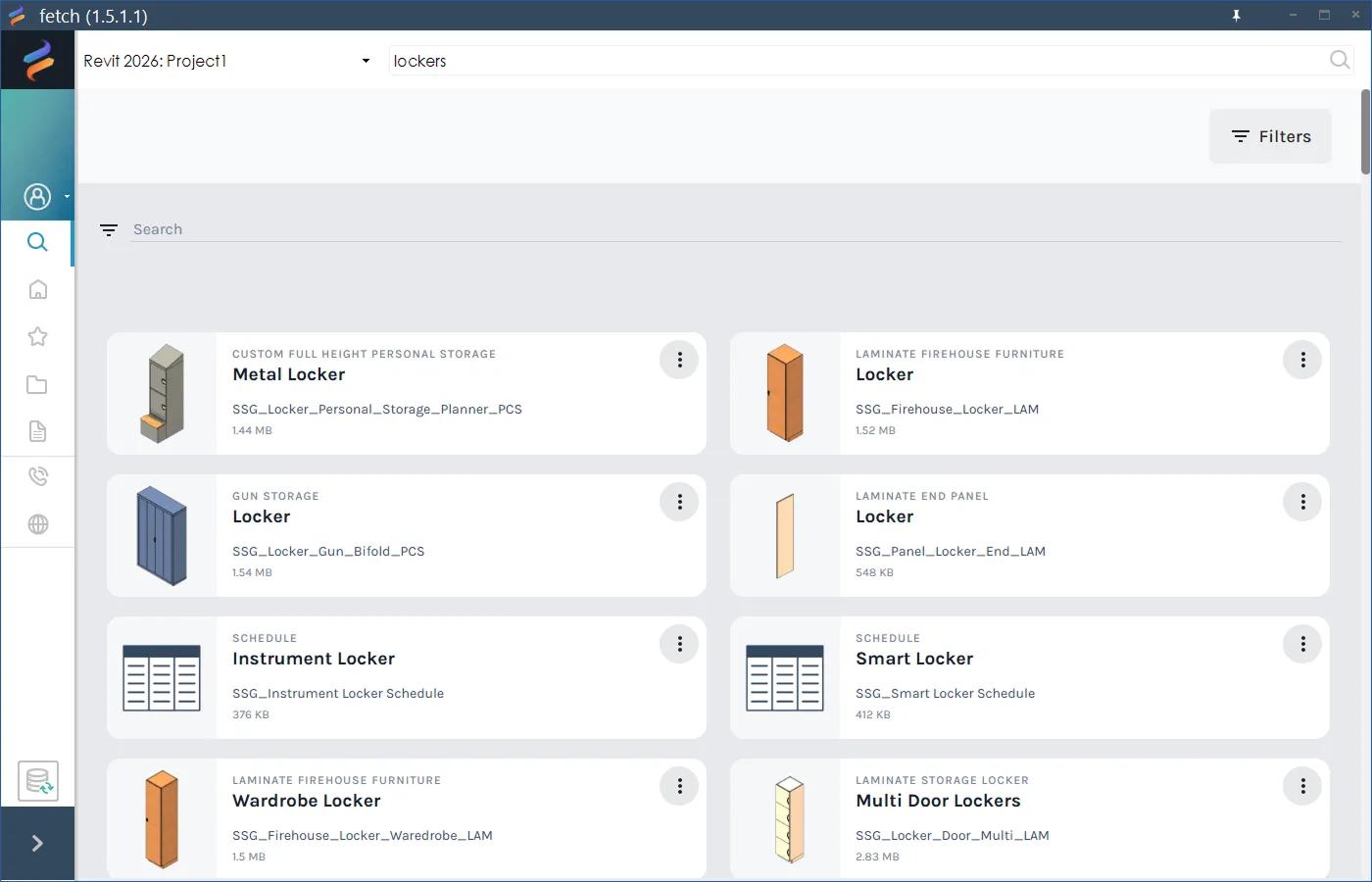
Try what the product is ("mobile shelving", "locker", "blueprint storage") or what it's for ("high density", "evidence storage"). The search bar is on every tab of the Fetch app.
Filter the results
Select Filters to narrow the results. Filters stack: each one you add narrows the list further. Clear filters at the bottom resets them.
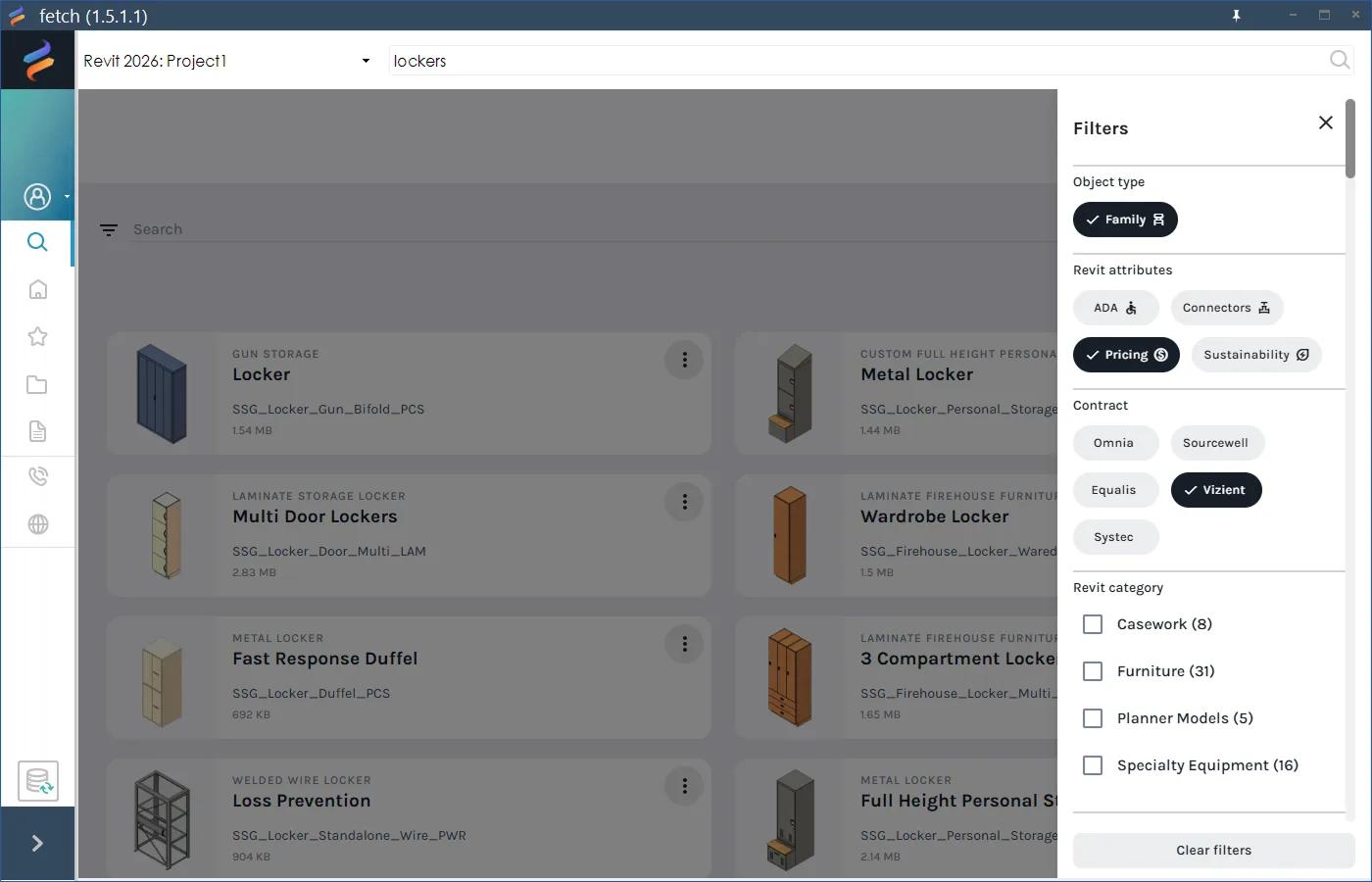
| Filter | Use it to find |
|---|---|
| Object type | Families, model groups, schedules or templates. |
| Revit attributes: ADA, Connectors, Pricing, Sustainability | Content that meets ADA accessibility requirements, has MEP connectors, has budget pricing built in, or comes with sustainability information. |
| Contract: Omnia, Sourcewell, Equalis, Vizient, Systec | Products available through a purchasing contract your client uses. See Contract vehicle. |
| Revit category | One or more Revit categories, such as Casework or Specialty Equipment. Each shows how many results it has. |
Search tips
- Start broad, then filter. "Shelving" plus a width range finds more than a long, specific search.
- Browse instead when you're exploring: the Browse tab lists everything by Revit category, product type or market. See Fetch app tour.
Was this page helpful?
Still stuck? Contact the Fetch team and tell us which page you were on.