Sync product data
Pull the latest product codes, descriptions, budget pricing and lead times into the Fetch families already in your Revit project, from the Revit ribbon or the Fetch app.
Fetch pluginRevit 2023–2027Updated
The Fetch content team keeps product data current. A sync brings that data into the Fetch families already in your project: product codes, descriptions, budget pricing, lead times and formulas. It doesn't replace the families themselves. For that, see Update families.
When to sync
- Before you issue a schedule or a budget, so codes and prices are current.
- After placing a traditional model group, whose families come from a saved file.
- Any time. Fetch also syncs automatically whenever you insert a new family.
Choose a sync type
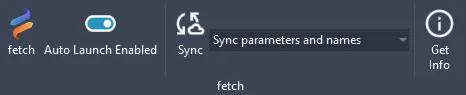
Pick the sync type from the drop-down on the Fetch tab of the Revit ribbon.
| Sync type | Updates | Use it when |
|---|---|---|
| Sync parameters and names | Parameters, formulas, and family and type names | You haven't renamed anything (most projects) |
| Sync only parameters | Parameters and formulas only | You've made your own types or renamed families and want to keep them |
Sync from Revit
- Open the Fetch tab on the Revit ribbon and select Sync.
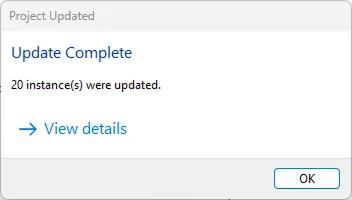
- Wait a few seconds. Revit shows Update Complete with the number of instances that were updated.
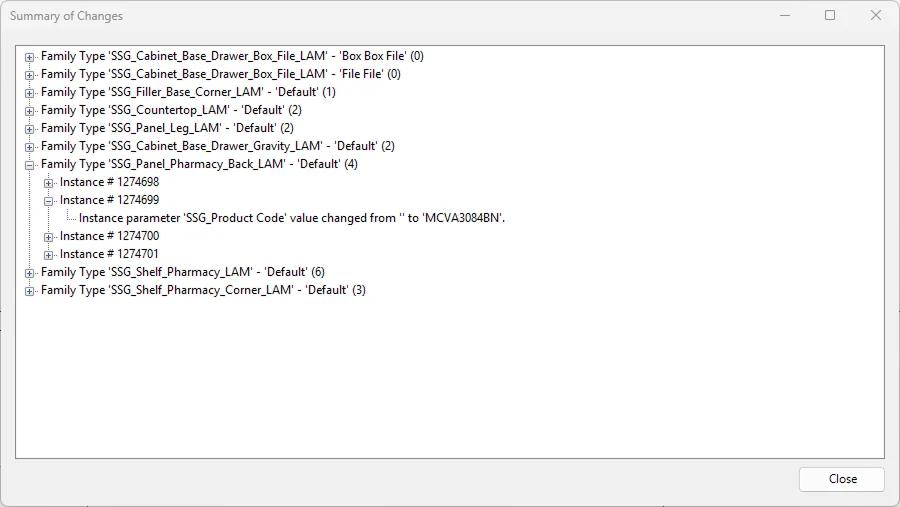
- Select View details to open the Summary of Changes. It lists each family type, then each instance, then every parameter that changed, for example a product code that was filled in.
Sync from the Fetch app
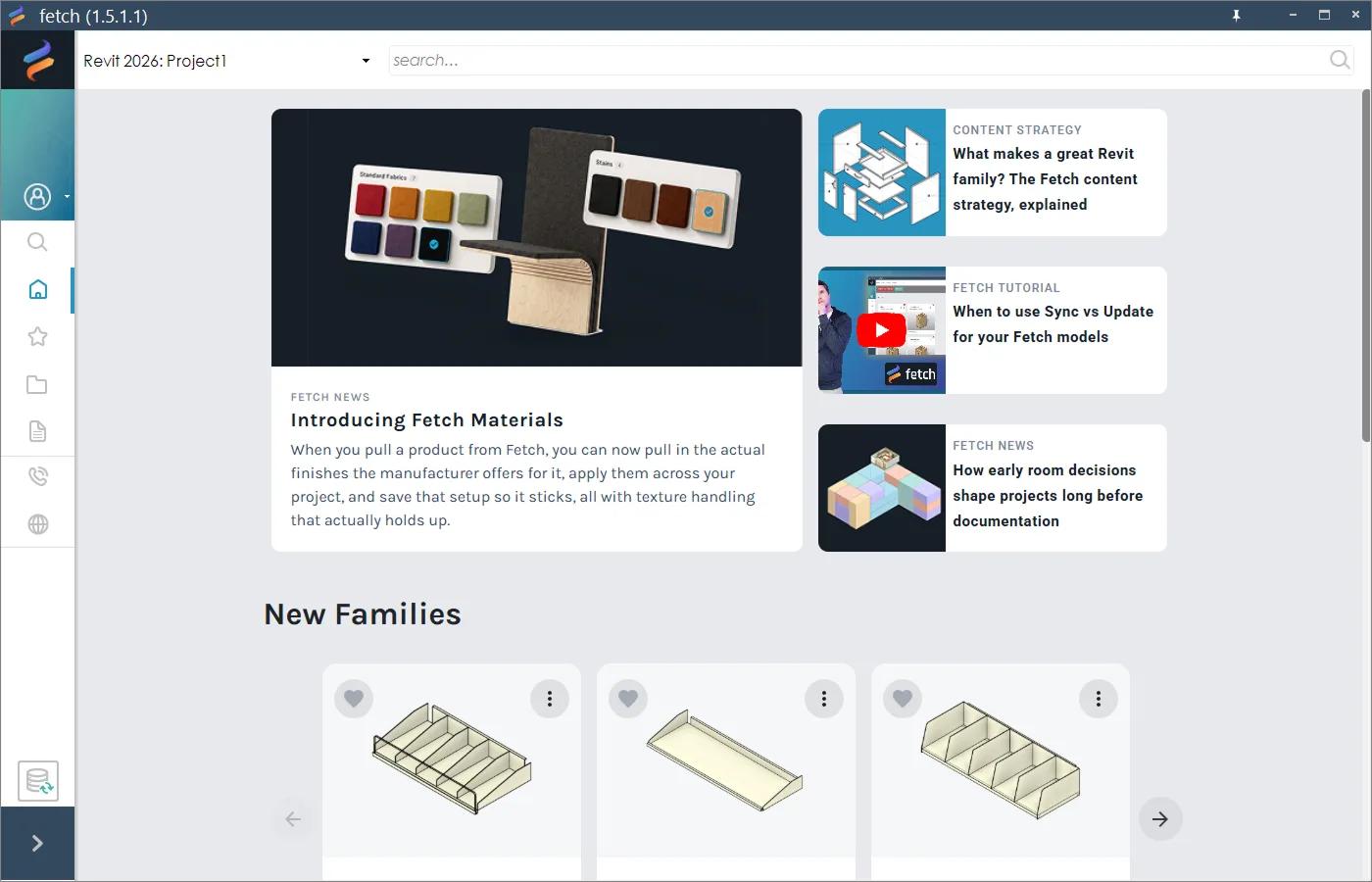
- Select the sync button at the bottom of the tabs in the Fetch app.
- When it's done, the same Update Complete window appears. Select View details to see every change.
Was this page helpful?
Still stuck? Contact the Fetch team and tell us which page you were on.