Read a content card
What each part of a Fetch content card tells you, from the product line and tags to the Load button, materials and the documents that come with the product.
Fetch pluginRevit 2023–2027Updated
Every family, model group, schedule and template in Fetch appears as a card. From top to bottom:
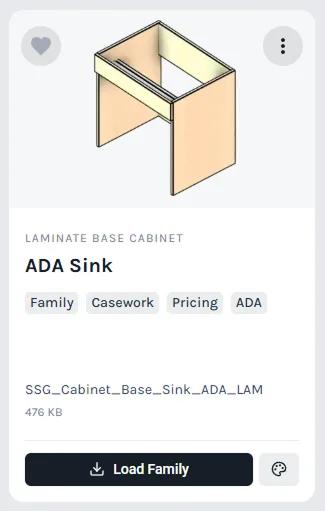
Picture and menu
- Picture: a preview of the product.
- Heart: adds the card to your Favorites. See Favorites.
- ⋮ menu: Insert, Config Material, Update, the documents that come with the product (CSI specs, finish options, spec guides, material libraries), and Learn More, which opens the product page on fetchbim.com. See Documents and specs.
- Pin: on the Favorites tab, pins the card to the top. See Favorites.
Name and tags
- Product line, in small capitals, for example "Laminate Base Cabinet".
- Name, for example "1 Door 1 Drawer".
- Tags: the content type (Family, Template, Schedule), the Revit category (for example Casework), and what the content includes, such as Pricing or ADA. Content that isn't public yet carries a status tag such as Private, visible only to selected groups.
You can filter by most of these tags. See Search and filter.
File
The name of the Revit file Fetch loads, and its size.
Load and materials
- Load Family, Load Template or Load Schedule places the content in your project. See Insert your first family.
- The palette button, on products with finishes, opens the product's materials. See Fetch Materials.
Was this page helpful?
Still stuck? Contact the Fetch team and tell us which page you were on.