Fetch Materials
Pick the finishes a manufacturer actually offers for a product, apply them to every instance in your Revit project, and keep textures working on every machine and in cloud renders.
Fetch pluginRevit 2023–2027Updated
Fetch Materials are the real finishes a manufacturer offers for a product: laminates, upholstery, paint colors and more. They live on the product's card in the Fetch app, so you don't search a separate library or guess which generic material is close enough. If a finish is on the card, it can be purchased for that product.
Apply a finish
- On the family's card in the Fetch app, select the palette button next to Load Family. (The card's ⋮ menu has the same thing, as Config Material.) The Material Configurator opens.
- On the Family Defaults tab, each material parameter on the family is listed, for example Cabinet. Select one to see the finishes the manufacturer offers for it, grouped by type, such as solid and woodgrain laminates.
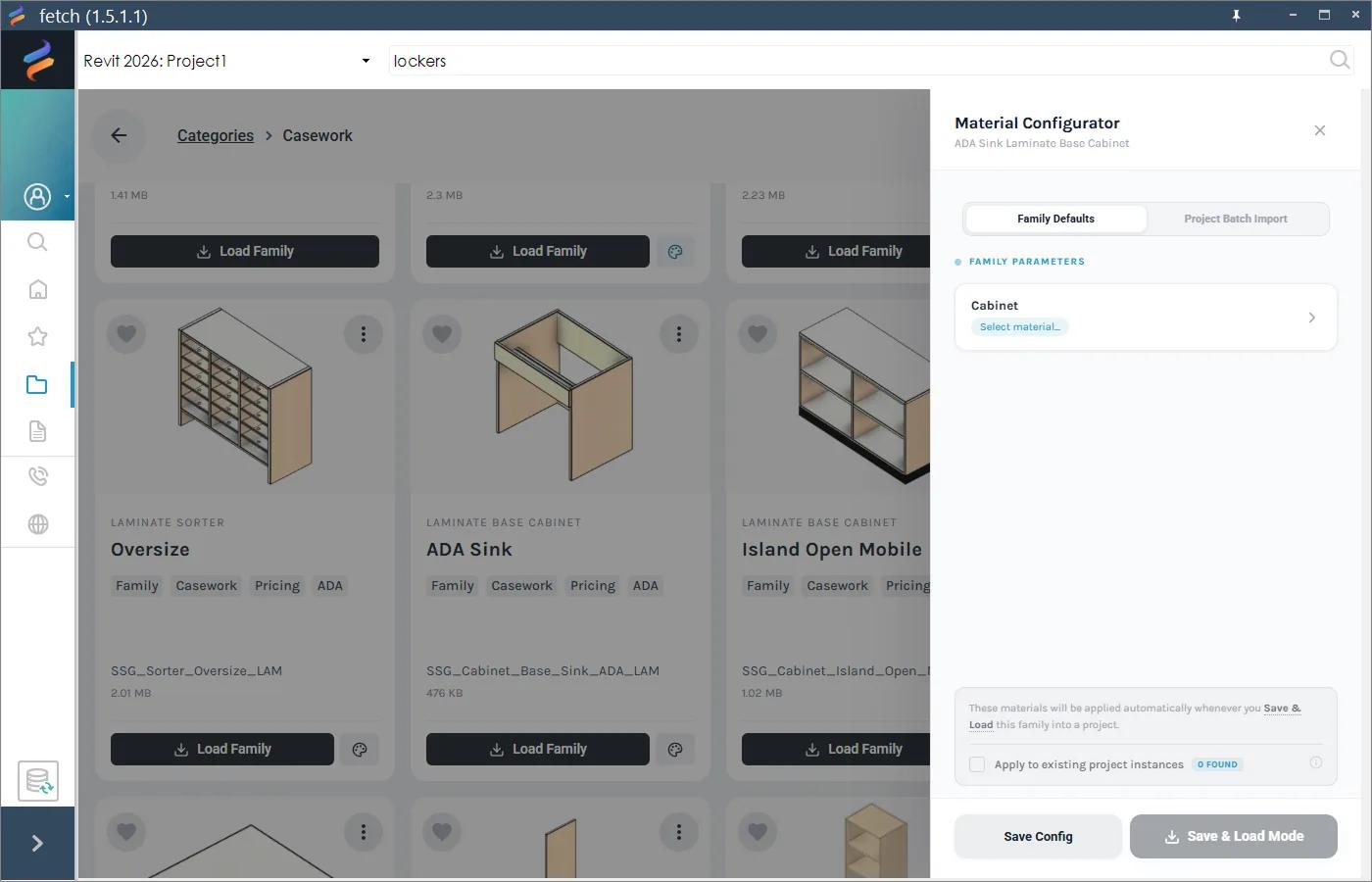
- Pick a finish for each parameter.
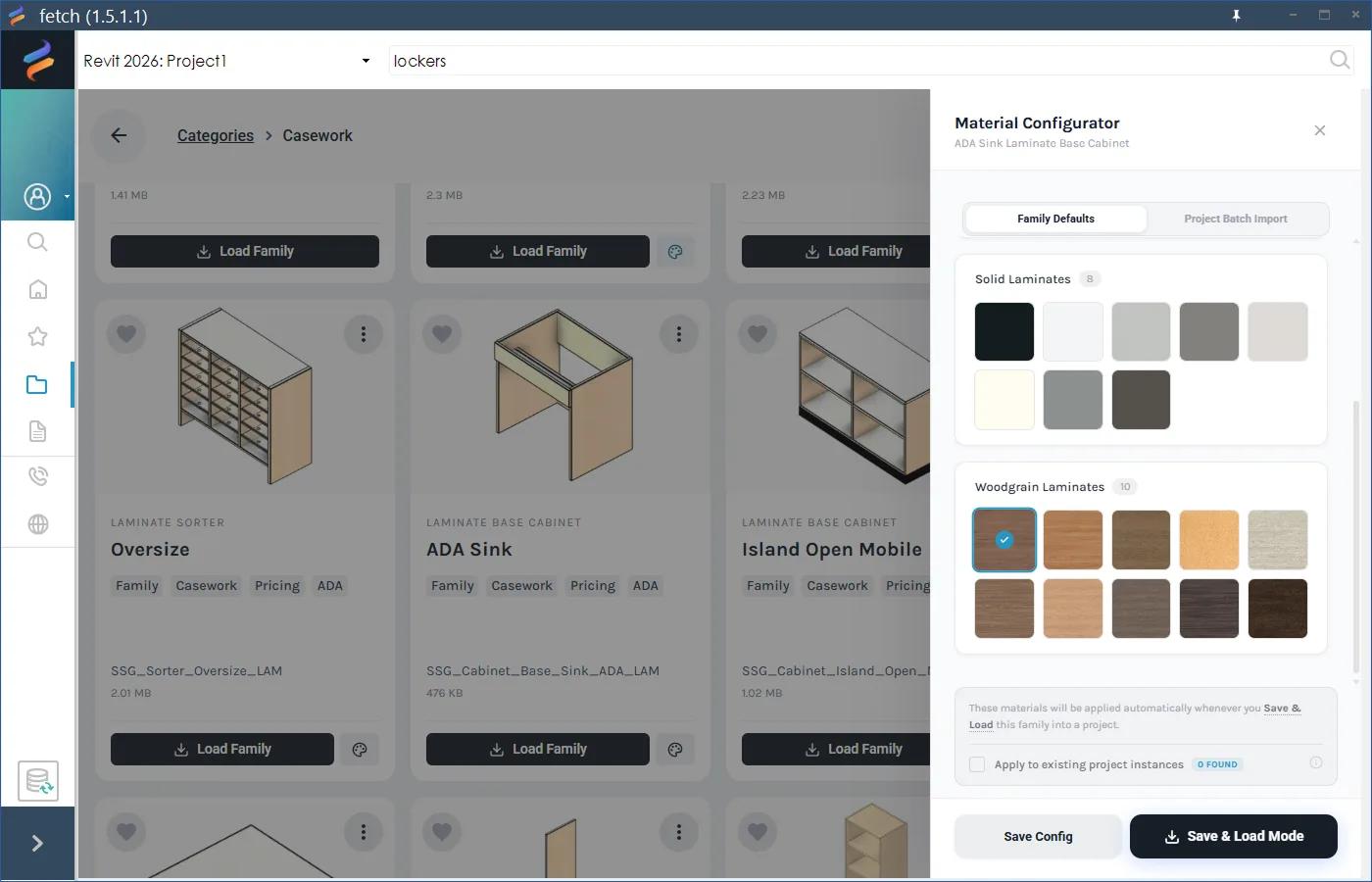
- To change families already in your project too, tick Apply to existing project instances. It shows how many it found.
- Select Save Config to keep these finishes for the next time you load the family, or Save & Load to save them and load the family now.
Your saved finishes are applied automatically every time you load that family.
Bring in several materials at once
The Project Batch Import tab loads several of a product's materials into your project in one go, so they're ready to assign.
How Fetch keeps materials clean
- No duplicates. Every Fetch material has a unique Fetch ID. If it's already in your project, Fetch reuses it instead of creating "Laminate (2)".
- No name collisions. Each material gets its own properly structured appearance asset and a name that won't clash with other content in your project.
- Textures that follow the model. Fetch keeps texture images in a Fetch-managed folder at the same path on every machine, and records inside the model which textures each Fetch material needs.
When someone else opens your model
When a teammate with Fetch opens the model, whether it's a network central, an ACC or BIM Collaborate model, or a file you sent a consultant, Fetch checks which textures their machine is missing and downloads them in the background. They don't get a prompt, and they don't need to restart Revit. Cloud renders find the textures too.
If they're offline, nothing breaks: shaded views look normal, and the textures arrive the next time they open the model online.
Someone without Fetch can still document the model. Material names, categories, identity data, colors and patterns, and schedules all come through.
Fetch Materials vs your material library
Fetch Materials don't replace your office library. Use them for the Fetch products in your model, where the finish needs to match what's specified and ordered. Any material in your project still works in a family's MAT_ parameters. See Configure a family.
For the background, read Introducing Fetch Materials.
Was this page helpful?
Still stuck? Contact the Fetch team and tell us which page you were on.