Add a master schedule
Insert a preconfigured Fetch schedule that lists product codes, descriptions and budget pricing for every Fetch family in your Revit project.
Fetch pluginRevit 2023–2027Updated
Fetch schedules come preconfigured with the fields Fetch families carry, such as product code, description and budget price. There are no fields or filters to set up.
Insert the master schedule
- In the Fetch app, open Browse → Schedules (or search for "master schedule") and select Load Schedule on the Master card.
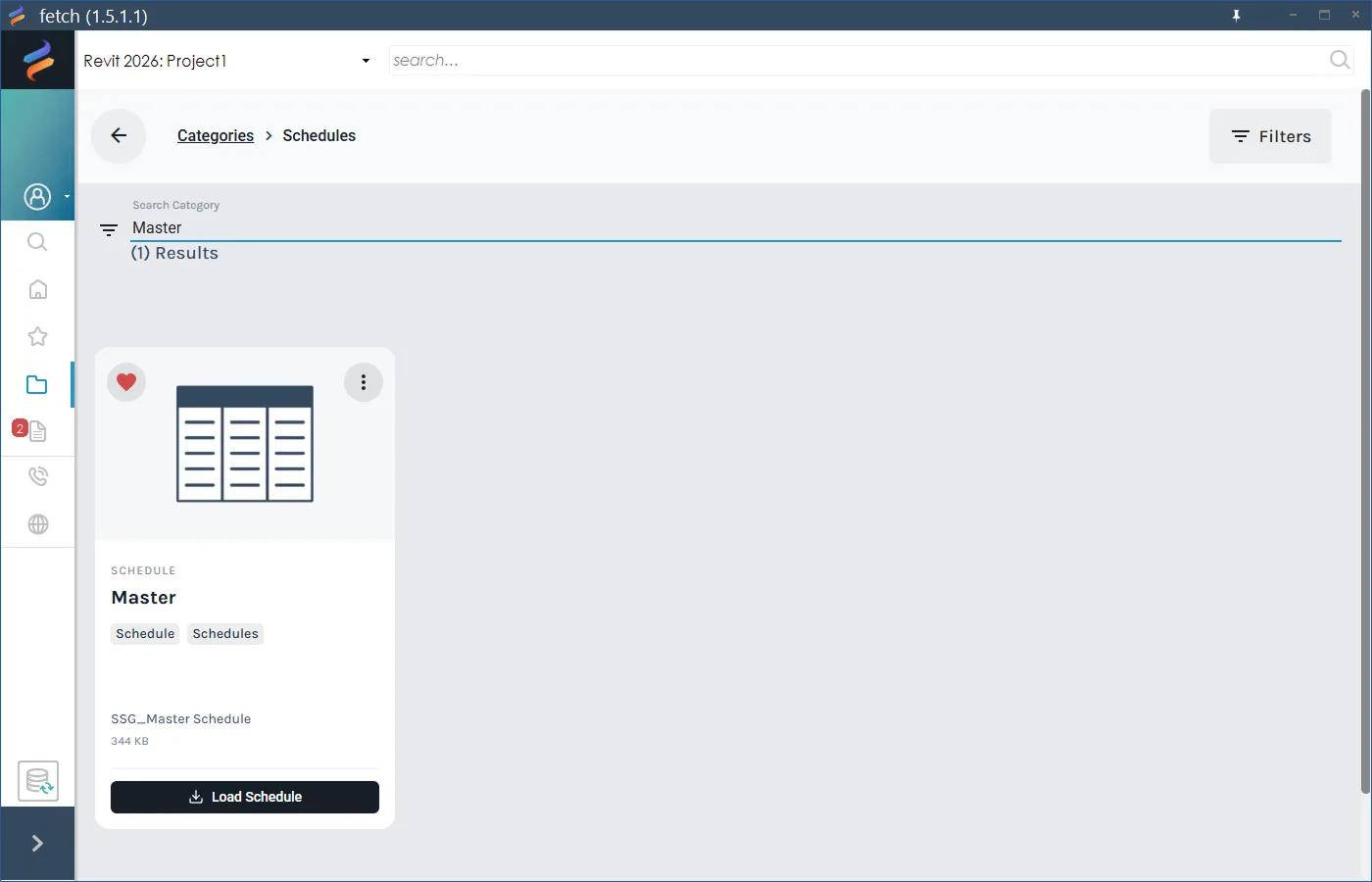
- Click in the Revit window while Fetch shows "Loading… Please wait."
- After a few seconds, the schedule appears in the Project Browser under Schedules/Quantities.
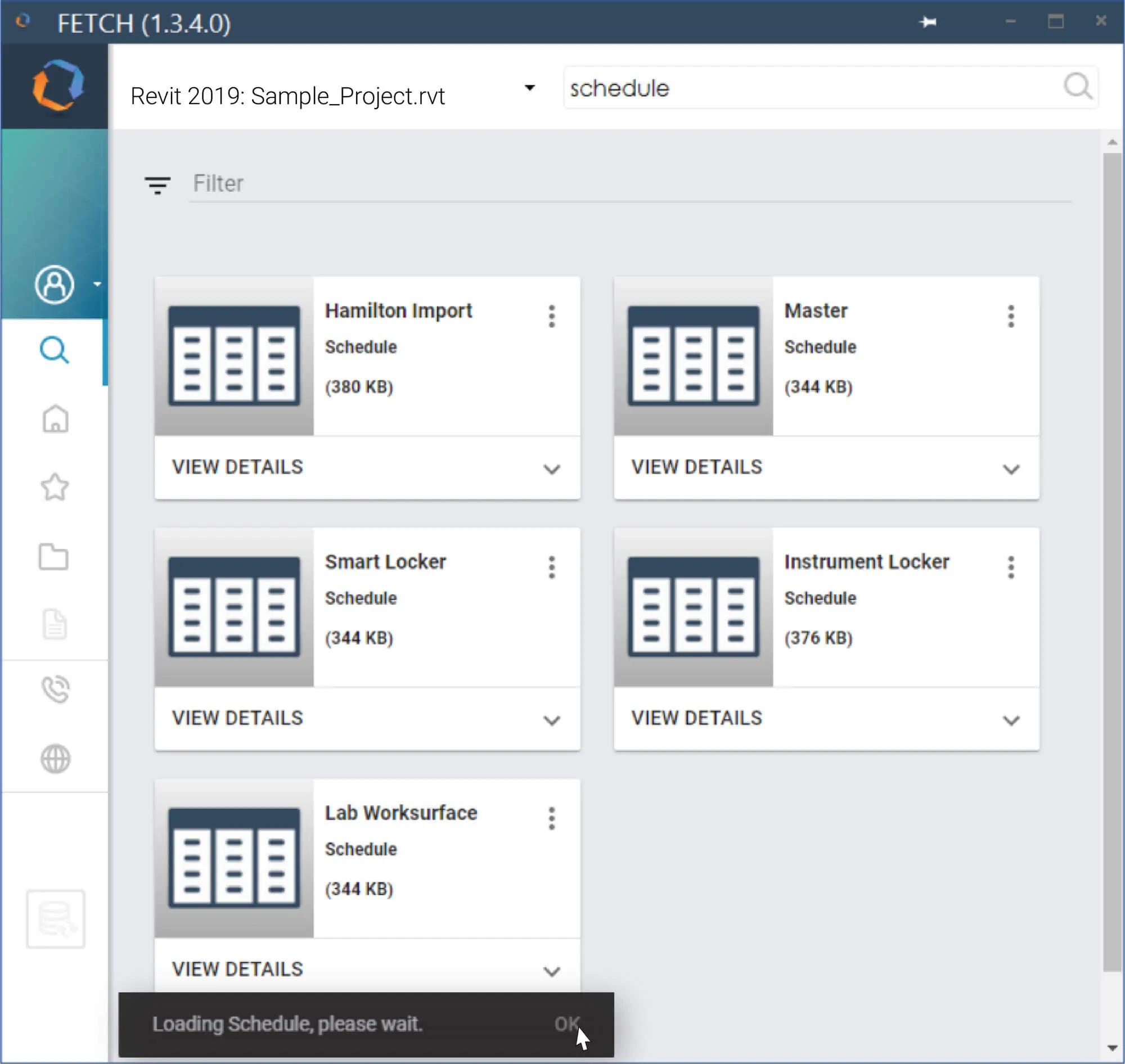
Other Fetch schedules are inserted the same way.
Fill it with current data
A new schedule shows whatever data the families had when you placed them. Run a sync to fill in the latest product codes, descriptions and budget pricing:
- Open the Fetch tab on the Revit ribbon and select Sync.
- When the sync finishes, open your master schedule. Every Fetch family now shows current data.
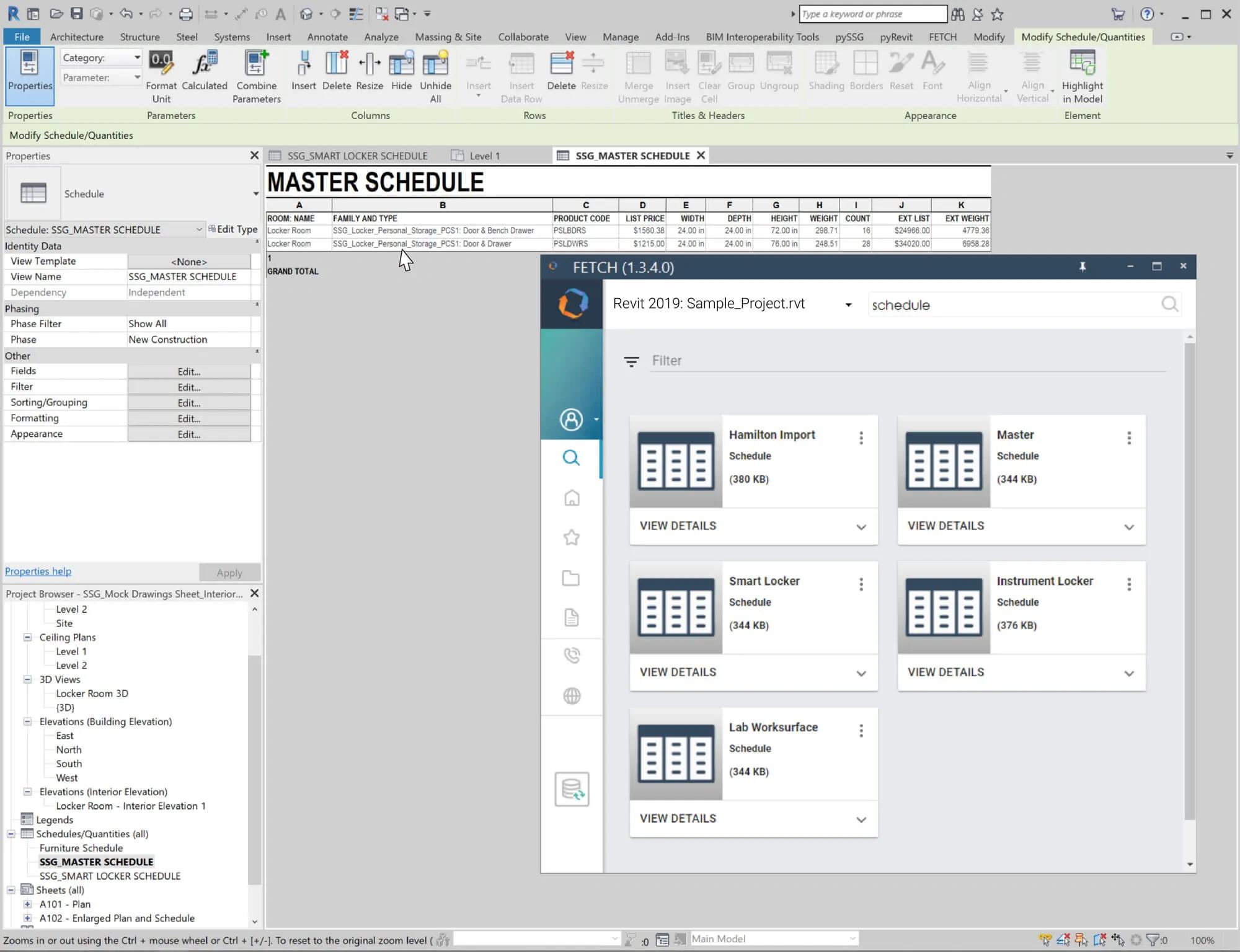
For sync types and when to sync, see Sync product data.
Was this page helpful?
Still stuck? Contact the Fetch team and tell us which page you were on.