The Fetch tab in Revit
What the Sync, sync type, Auto Launch, Fetch and Get Info buttons on the Fetch tab of the Revit ribbon do.
Fetch pluginRevit 2023–2027Updated
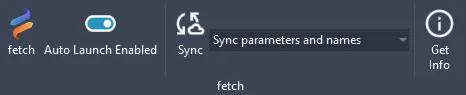
Fetch adds a Fetch tab to the Revit ribbon.
| Button | What it does |
|---|---|
| fetch | Opens the Fetch app, or brings it to the front. |
| Auto Launch | When it's on, Fetch opens every time you start Revit. |
| Sync | Pulls the latest product data into every Fetch family in the project. See Sync product data. |
| Sync type | The drop-down next to Sync. Chooses what a sync changes: Sync parameters and names, or Sync only parameters to keep your own type names. |
| Get Info | Shows the Fetch Family ID of the selected family. |
Fetch Family ID
The Fetch Family ID is a 36-character code that links a family in your project to its record in the Fetch database. If you report a problem with a family, select it, select Get Info and include the ID. It lets the content team find the exact family.
Was this page helpful?
Still stuck? Contact the Fetch team and tell us which page you were on.