Model groups
Place a whole pre-assembled system, such as a run of casework, in one step. How dynamic and traditional model groups differ and how to insert each.
Fetch pluginRevit 2023–2027Updated
A model group is a pre-assembled set of families, such as a run of casework or a full storage system, that you place in one step. Fetch has two kinds.
| Dynamic model group | Traditional model group | |
|---|---|---|
| What Fetch loads | Each family on its own, placed at positions from the Fetch server | A Revit file containing a ready-made group |
| Family versions | Always the latest | As saved in the file. Sync after placing |
| In your project | Separate families you can edit one by one | A Revit group |
Dynamic model groups
Dynamic model groups are a Fetch specialty. Because every family comes straight from the Fetch content database, you get the current version of each one, already synced. For the background, read Introducing Dynamic Model Groups.
Insert a model group
Both kinds are inserted the same way.
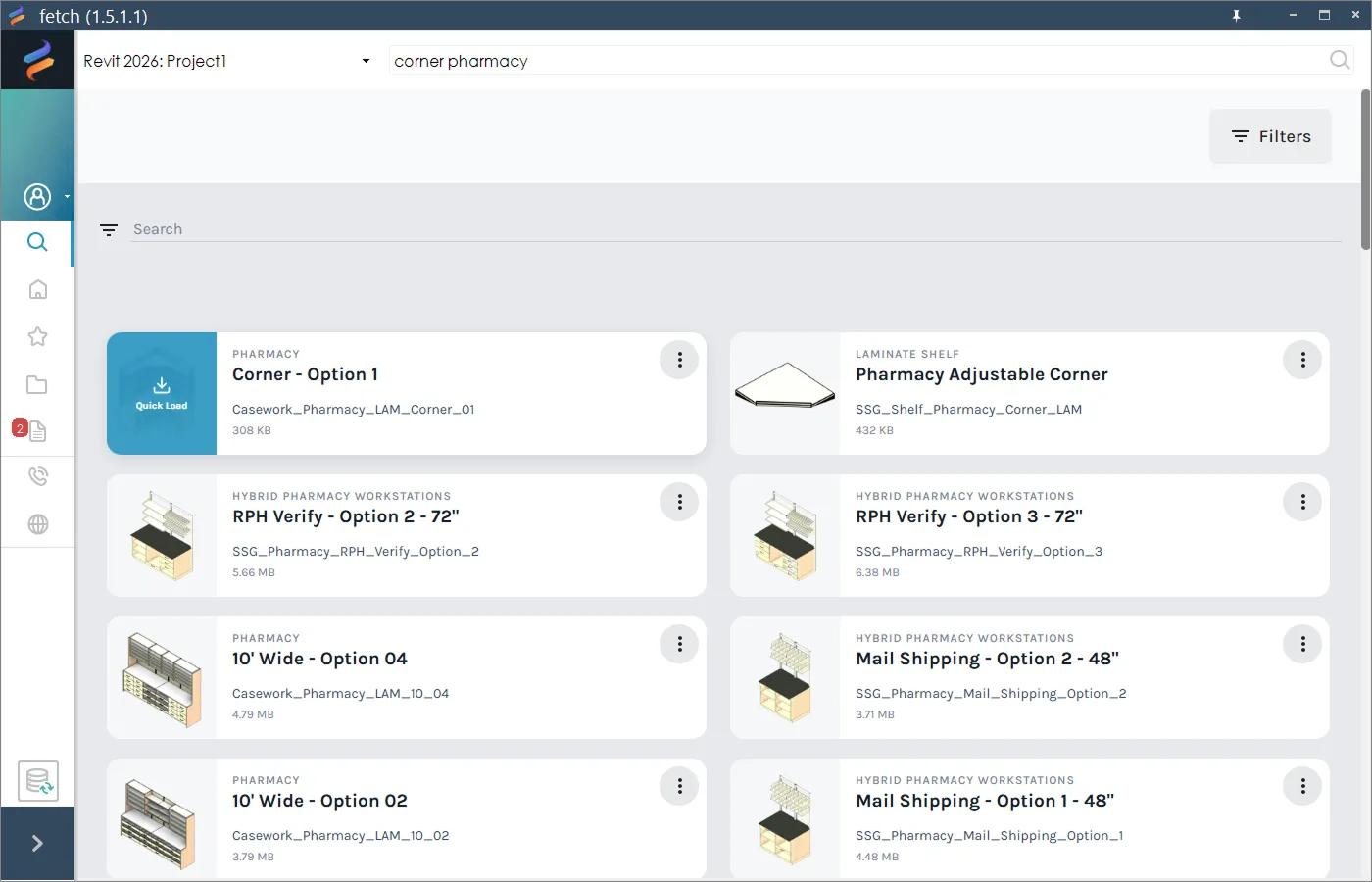
- In the Fetch app, find the model group, for example by searching "corner pharmacy".
- Hover over its picture and select Quick Load.
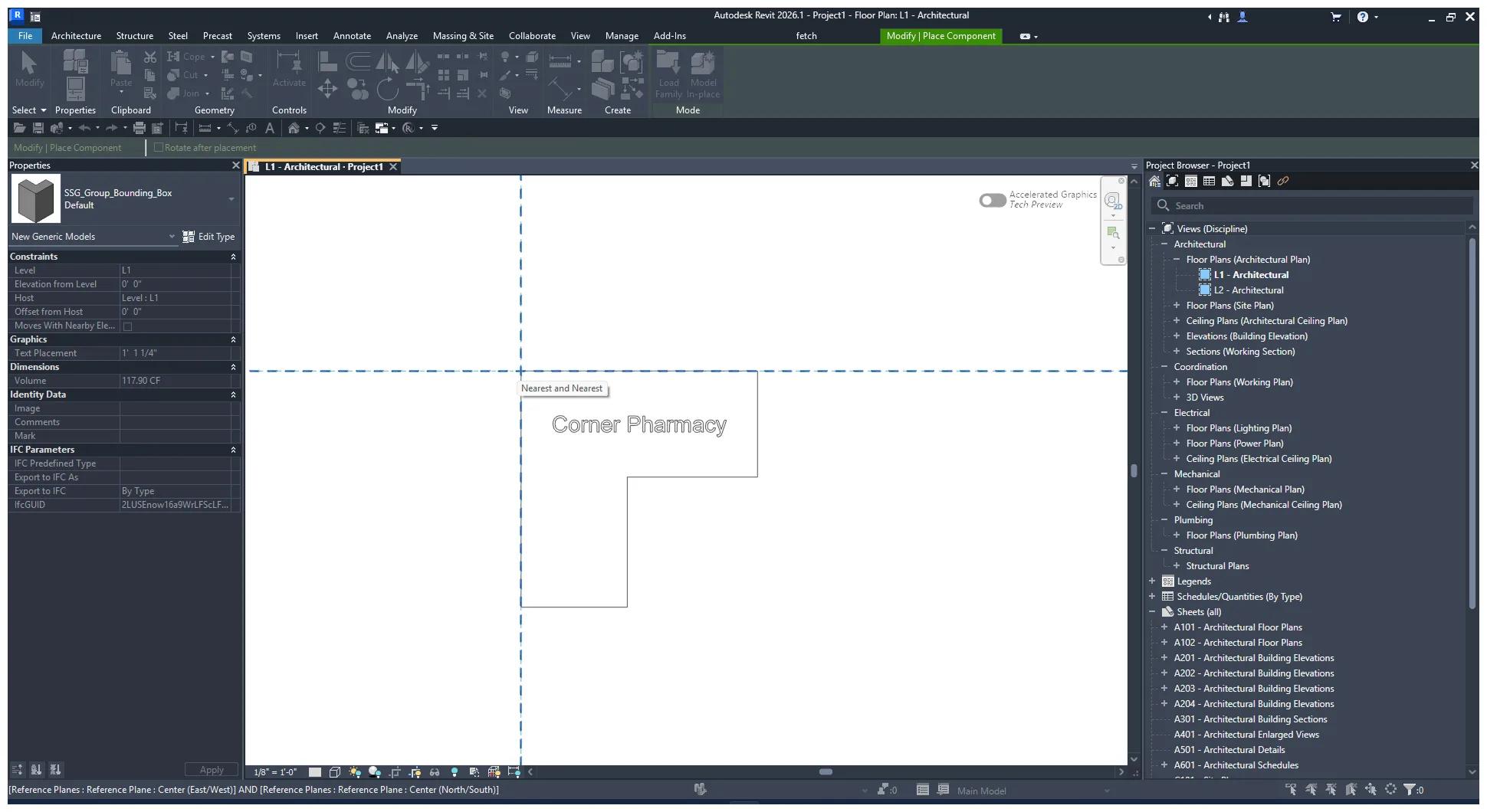
- Click in the Revit window while Fetch shows "Loading Model Group, please wait."
- Revit switches to placement mode. Until you place it, the group shows as a box the size of the whole group. Place as many as you need.
After placing a traditional model group, run a sync to bring its families' data up to date.
Was this page helpful?
Still stuck? Contact the Fetch team and tell us which page you were on.