Update families
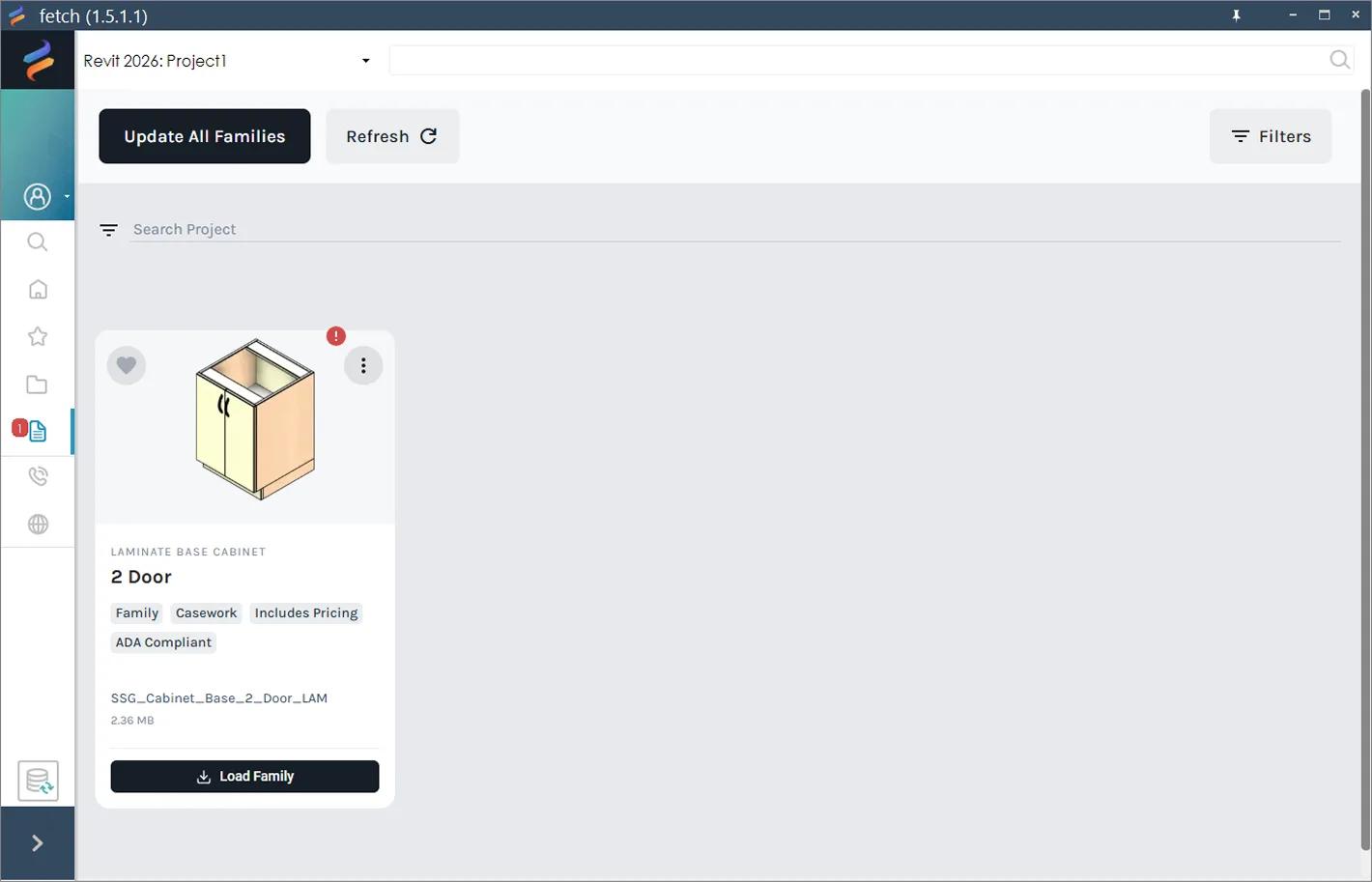
When the Fetch content team improves a family, Fetch flags it with a red exclamation mark. Update one family or every family in your Revit project in a few clicks.
Fetch pluginRevit 2023–2027Updated
When the Fetch content team fixes or rebuilds a family, for example new geometry or better parametric formulas, a sync isn't enough. Updating replaces the family in your project with the new version.
See which families have updates
The Project tab icon in the Fetch app shows a red badge with the number of updates waiting. Open the tab: families with an update are listed first, with a red exclamation mark on the card.
See what changed
Before you update, check what's different.
- In the Fetch app: on the Project tab, select the red ! on the card. The Change Log lists every change between the version in your project and the latest one, grouped into new features and bug fixes. Select Update to update the family right there, or Close.
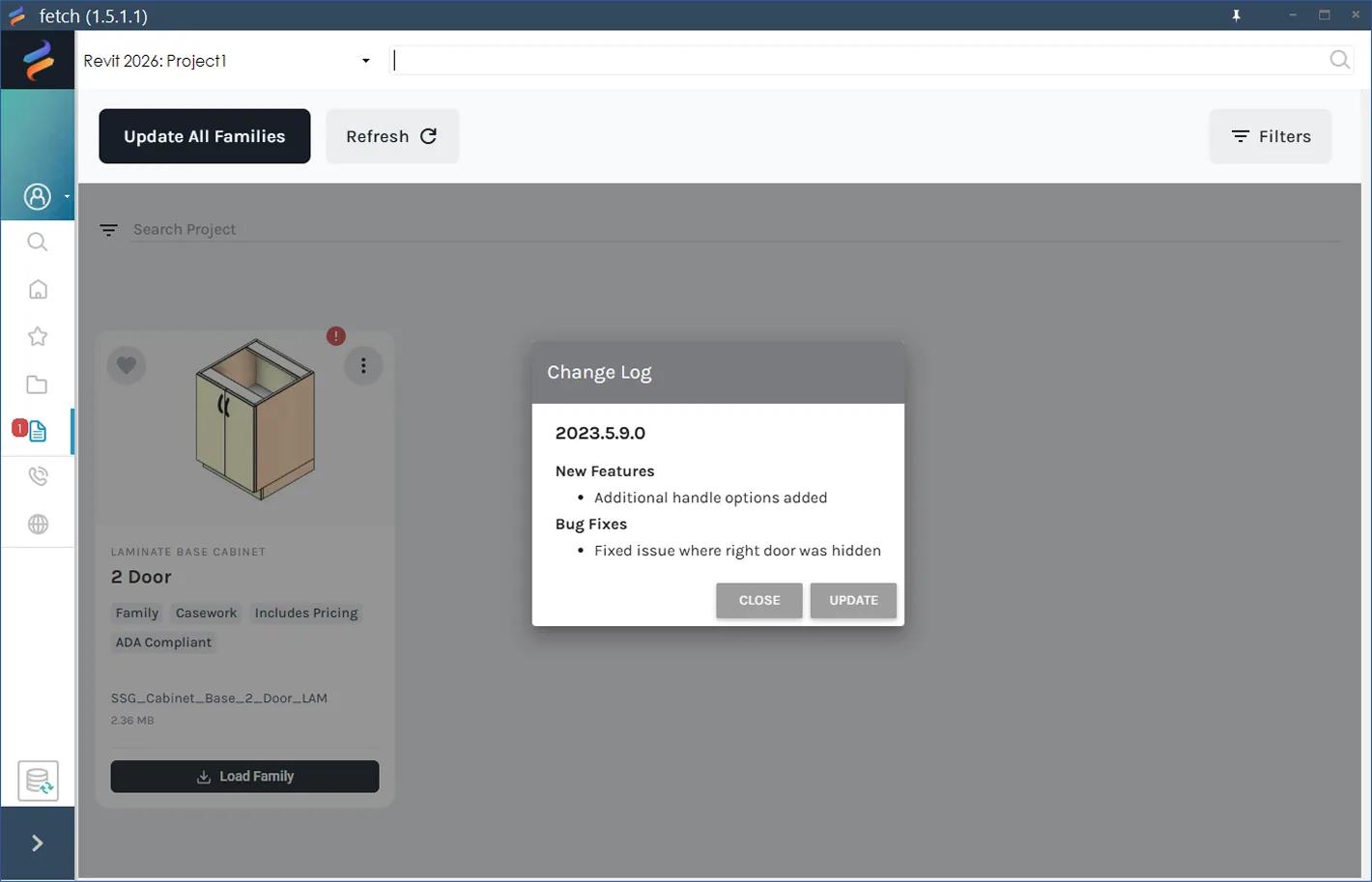
- On fetchbim.com: on the product's page, select the version number to see the notes for the three most recent versions.
Use the changelog to decide whether to update now, for example if a fix affects a family you've already scheduled or priced.
Update one family
- On the Project tab, select the red ! on the family's card and select Update in the Change Log. You can also open the card's ⋮ menu and select Update.
- When it's done, the red exclamation mark disappears.
Update every family
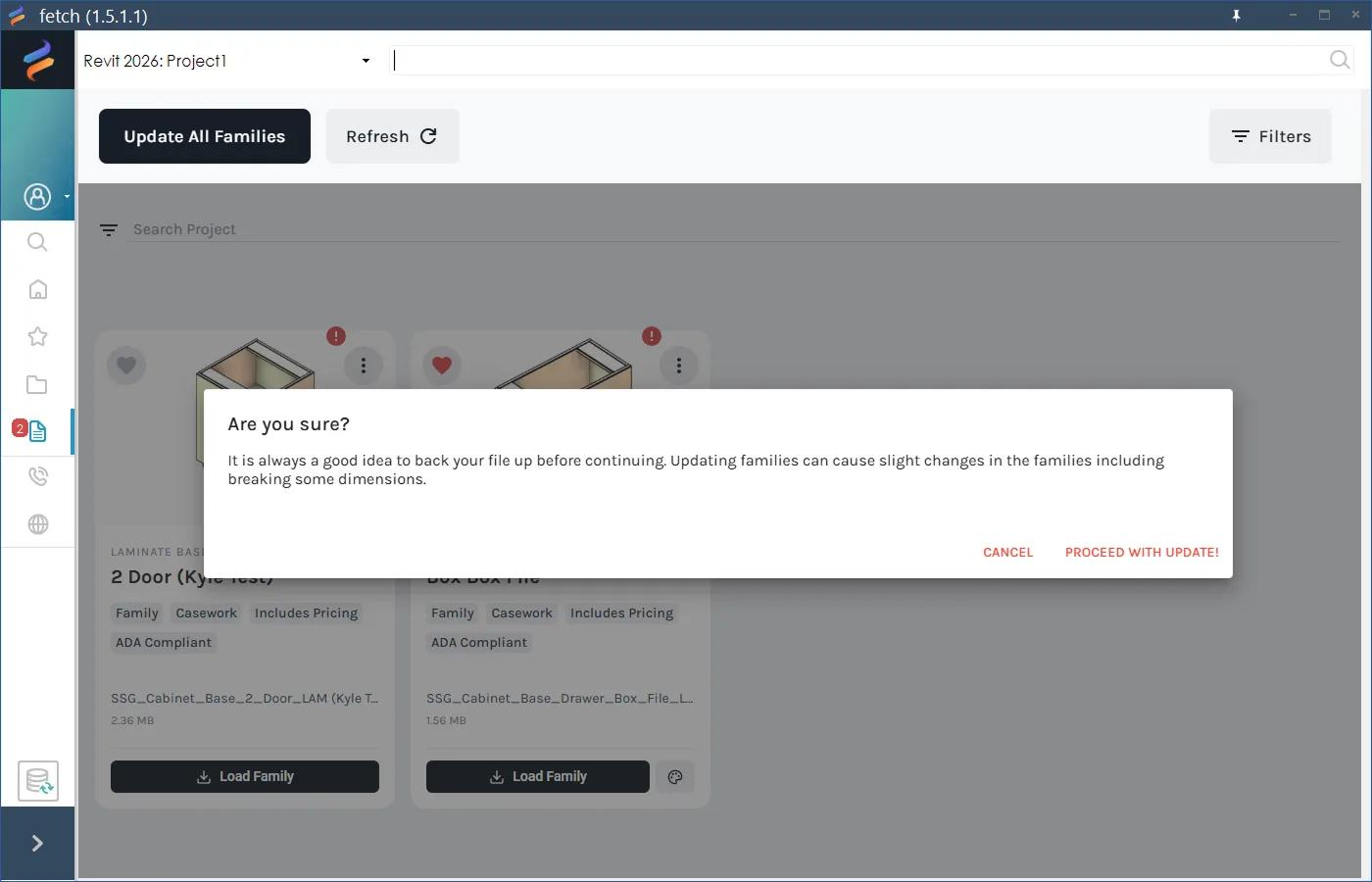
- On the Project tab, select Update All Families at the top of the page.
- Fetch reminds you to back up your file first, because an update can slightly change families, including breaking some dimensions. Confirm with Proceed with update!
- Fetch shows "Updating… Please wait." When it's done, every Fetch family in the project is on its latest version.
Was this page helpful?
Still stuck? Contact the Fetch team and tell us which page you were on.