Configure a family
Change size, options and materials on a placed Fetch family from the Revit Properties palette, and learn what each parameter prefix means.
Fetch pluginRevit 2023–2027Updated
Fetch families are configured with instance parameters, not types. You change width, shelf count, handles, locks and finishes on each instance from the Properties palette, so one family covers the whole product line.
Change a family
- Select a Fetch family in your Revit project.
- In Properties, find the parameters that start with
ENTER_,ADD_,MODIFY_orMAT_. - Enter a new value in
ENTER_Widthand select Apply. The family resizes to the nearest size the product comes in. - Try the other parameters to see how far one family can be configured.
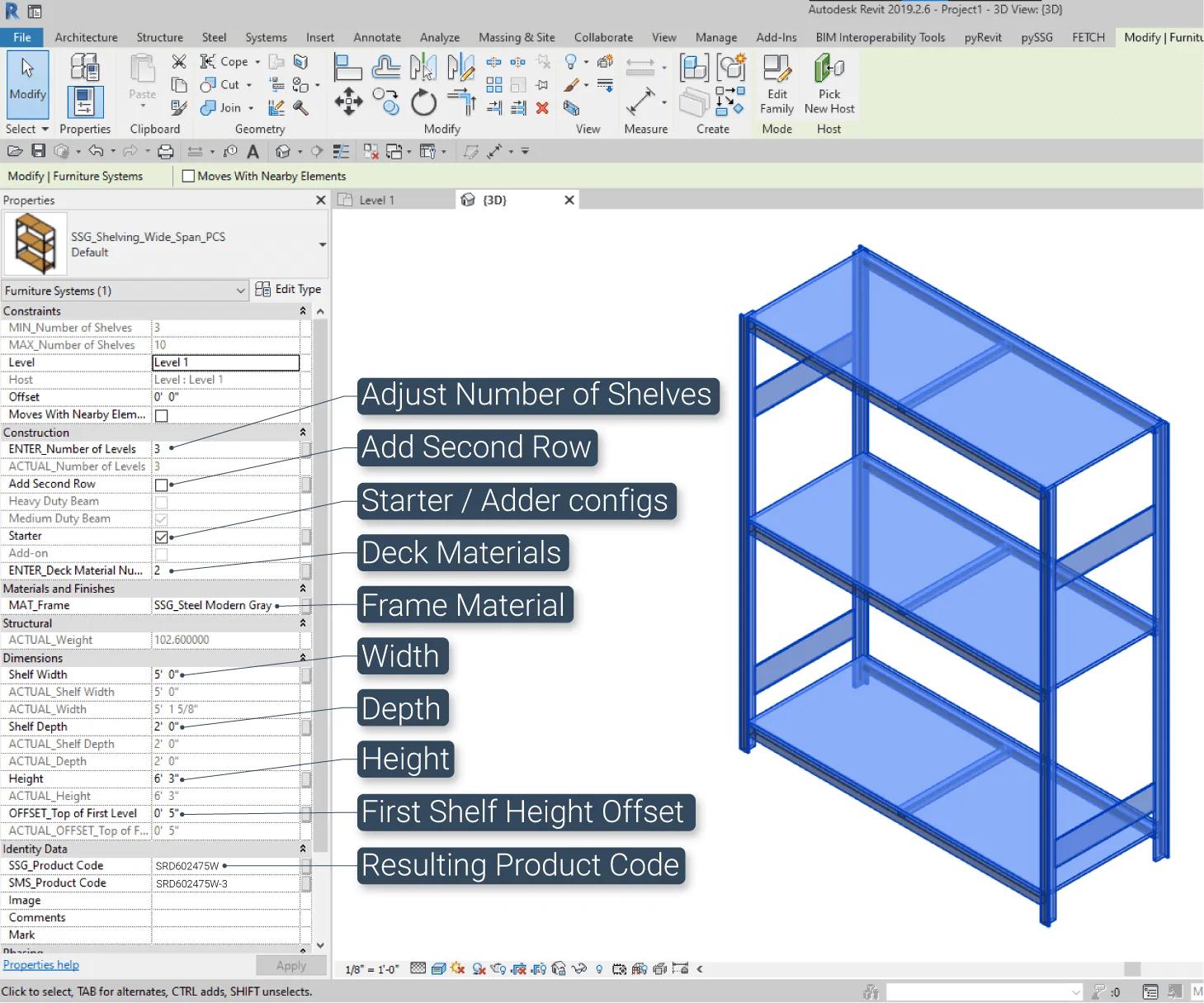
What the parameter prefixes mean
Every editable parameter starts with a prefix that tells you what it does.
| Prefix | What it does | Example |
|---|---|---|
ENTER_ | Takes a length or a number you type in | ENTER_Width, ENTER_Number of Shelves |
ACTUAL_ | Shows the value the family really uses, after checking your input against what the product comes in | Enter 52" in ENTER_Width on a 24"–48" cabinet and ACTUAL_Width shows 48" |
ADD_ | Adds or removes a feature or part | ADD_Locks |
MODIFY_ | Changes one aspect of the model, often in pairs | MODIFY_Starter, MODIFY_Adder |
MAT_ | Sets a material: any material in your project, or a manufacturer finish from Fetch Materials | MAT_Base (plywood), MAT_Finish (laminate) |
Was this page helpful?
Still stuck? Contact the Fetch team and tell us which page you were on.