Insert your first family
Find a manufacturer family in the Fetch app and place it in your Revit project in a few clicks.
Fetch pluginRevit 2023–2027Updated
Every family in Fetch is a real product from a manufacturer that Southwest Solutions Group represents, built and maintained by our content team. You place it straight from the Fetch app. There's nothing to download or load by hand.
Insert a family
- Open a Revit project and the Fetch app.
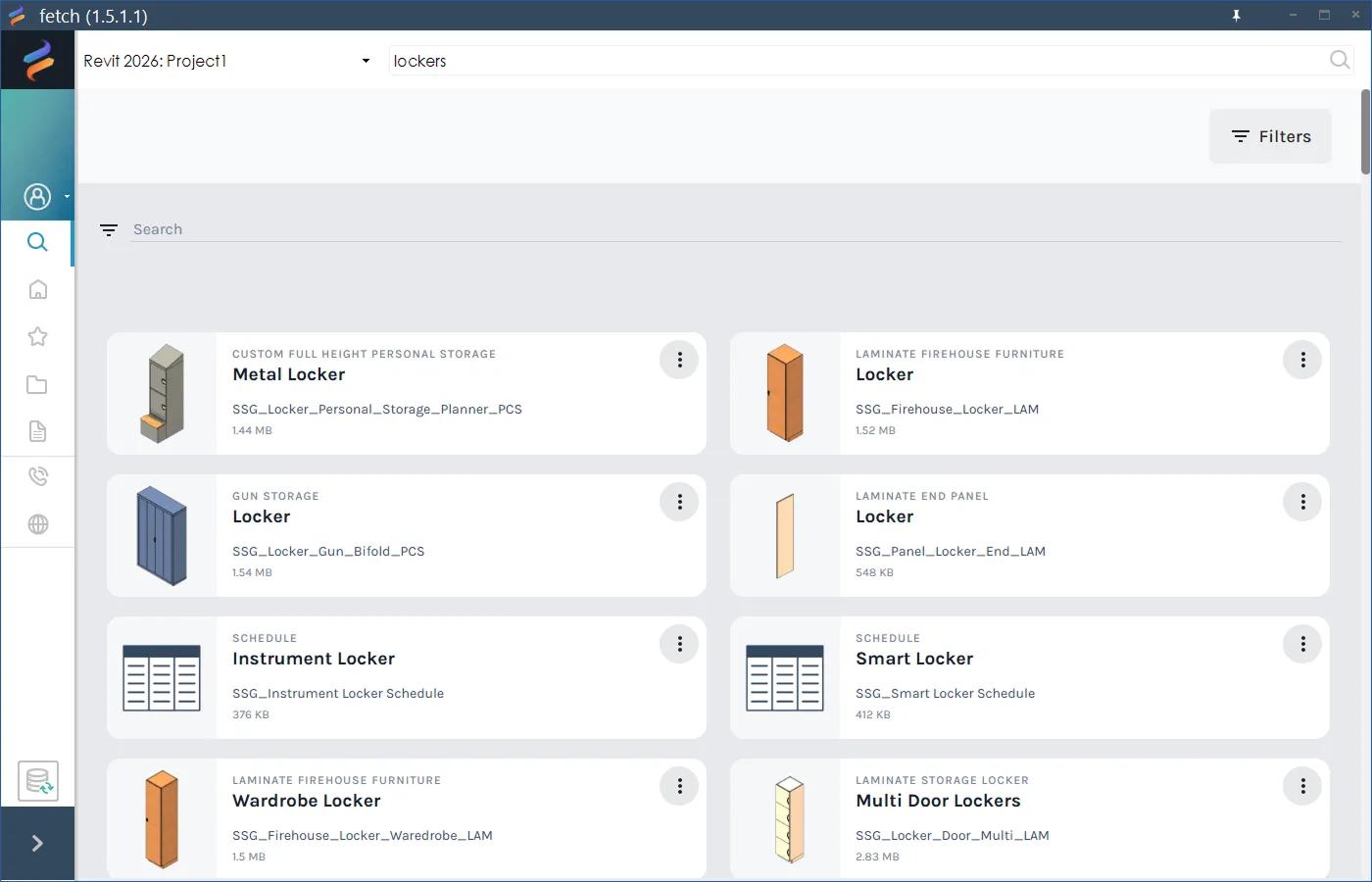
- Search for what you need, for example "locker" or "mobile shelving", or browse by category, product type or market.
-
Select Load Family on its card. In a list of search results, hover over the picture and select Quick Load.
-
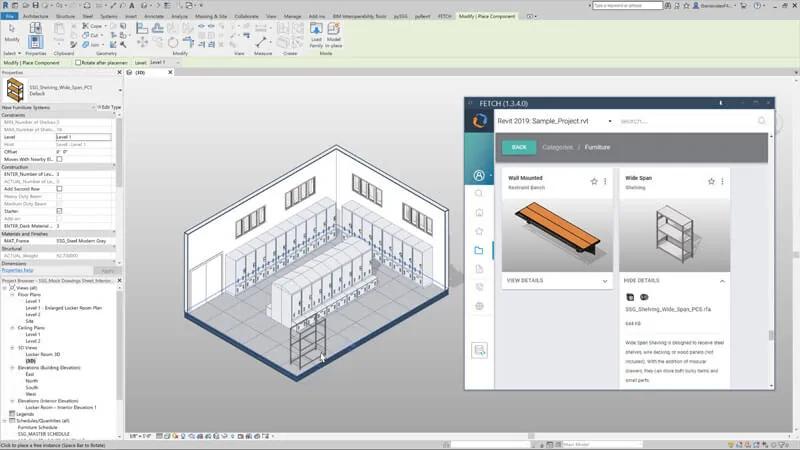
Click in the Revit window. Fetch shows "Loading Family, please wait", and after a few seconds Revit switches to placement mode.
-
Click to place as many instances as you need. Press Esc when you're done.
How Fetch loads families
The first time you insert a family, Fetch downloads its latest version and keeps it in a temporary folder. More placements in the same Revit session reuse that copy. When you close Revit, the temporary files are deleted, so the next session always starts from the latest version.
Once a family is in your project, it stays there like any other Revit family. To bring it up to date later, see Keep families up to date.
Was this page helpful?
Still stuck? Contact the Fetch team and tell us which page you were on.