Install Fetch
Create a free Fetch account, install the Fetch plugin for Revit and sign in. Takes about five minutes.
Fetch pluginRevit 2023–2027Updated
Fetch is a free Revit plugin from Southwest Solutions Group. It puts manufacturer families in a panel inside Revit, so you can place real products in your model and keep their data current.
What you need
- Windows with Revit 2023 to 2027.
- A free Fetch account. You use the same account on fetchbim.com and in the plugin.
- Permission to install software for your Windows user. If your company manages installs centrally, send your IT team Deploy Fetch for your team.
1. Create your account
- Go to Sign up and fill in your details.
- Confirm your email address. The confirmation comes from donotreply@fetchbim.com with the subject "Welcome to Fetch".
If the email doesn't arrive within a few minutes, see Didn't get the confirmation email.
2. Install the plugin
- Close every Revit window.
- Select Download Fetch on the Fetch home page and run the installer.
- Accept the license agreement.
- On Select Components, keep Full installation to add Fetch to every Revit version from 2023 to 2027, or untick the versions you don't use.
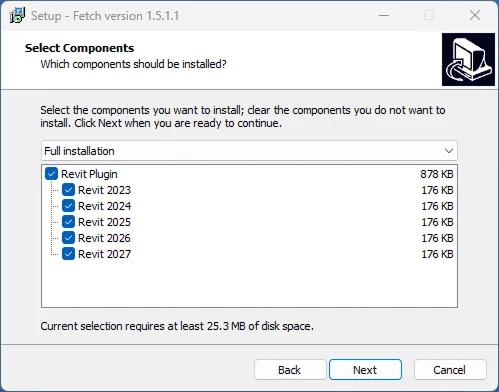
- Select Next and wait for the installer to finish. It can take a few minutes.
Fetch installs for your Windows user only. If several people share a computer, each one runs the installer while signed in as themselves.
3. Load Fetch in Revit and sign in
- Open Revit. The first time, Revit asks whether to load Fetch. Choose Always Load. Fetch is signed by Southwest Solutions Group.
- Fetch opens. Sign in with your Fetch account. Tick Remember me so you don't have to sign in every time.
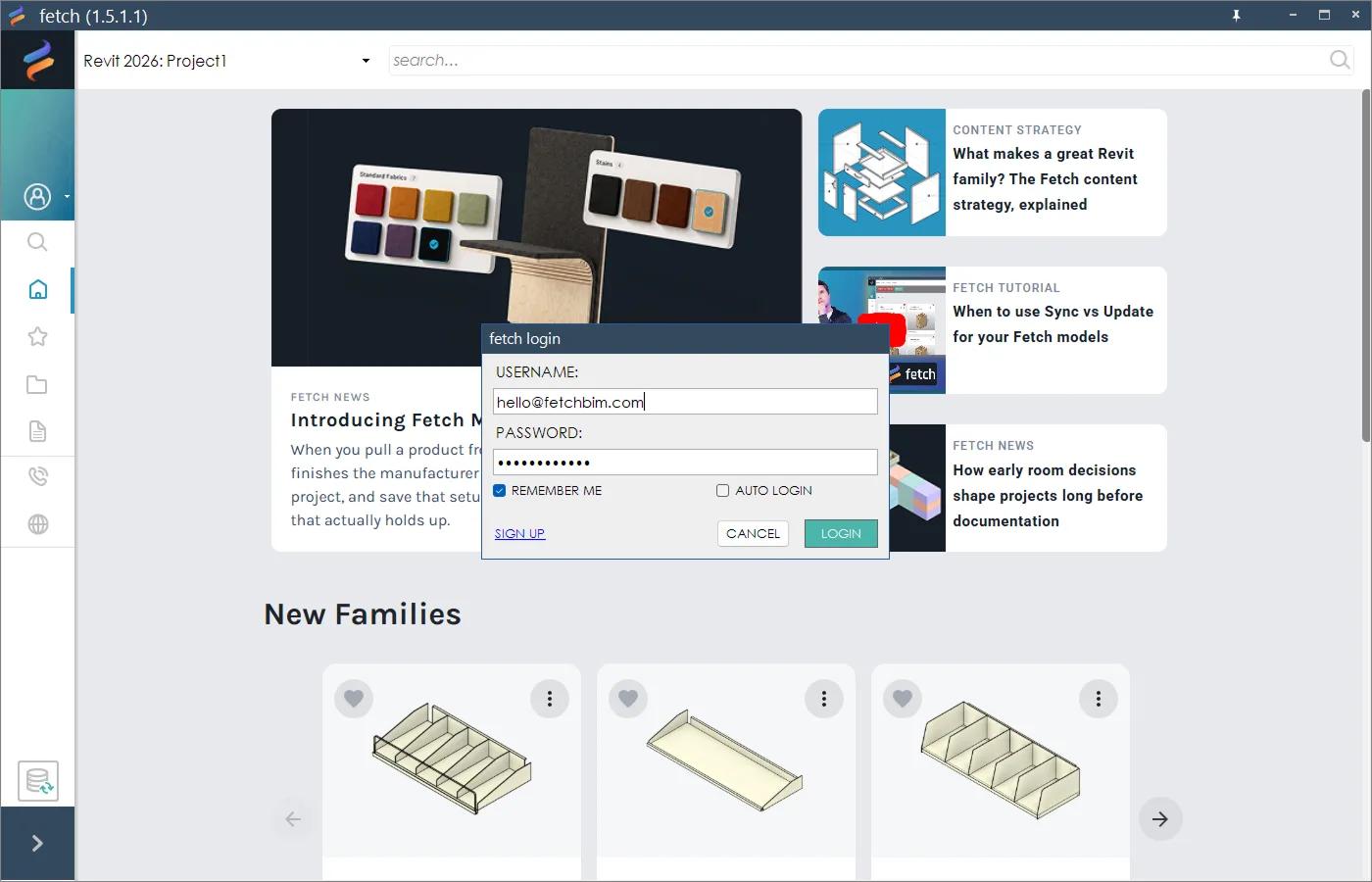
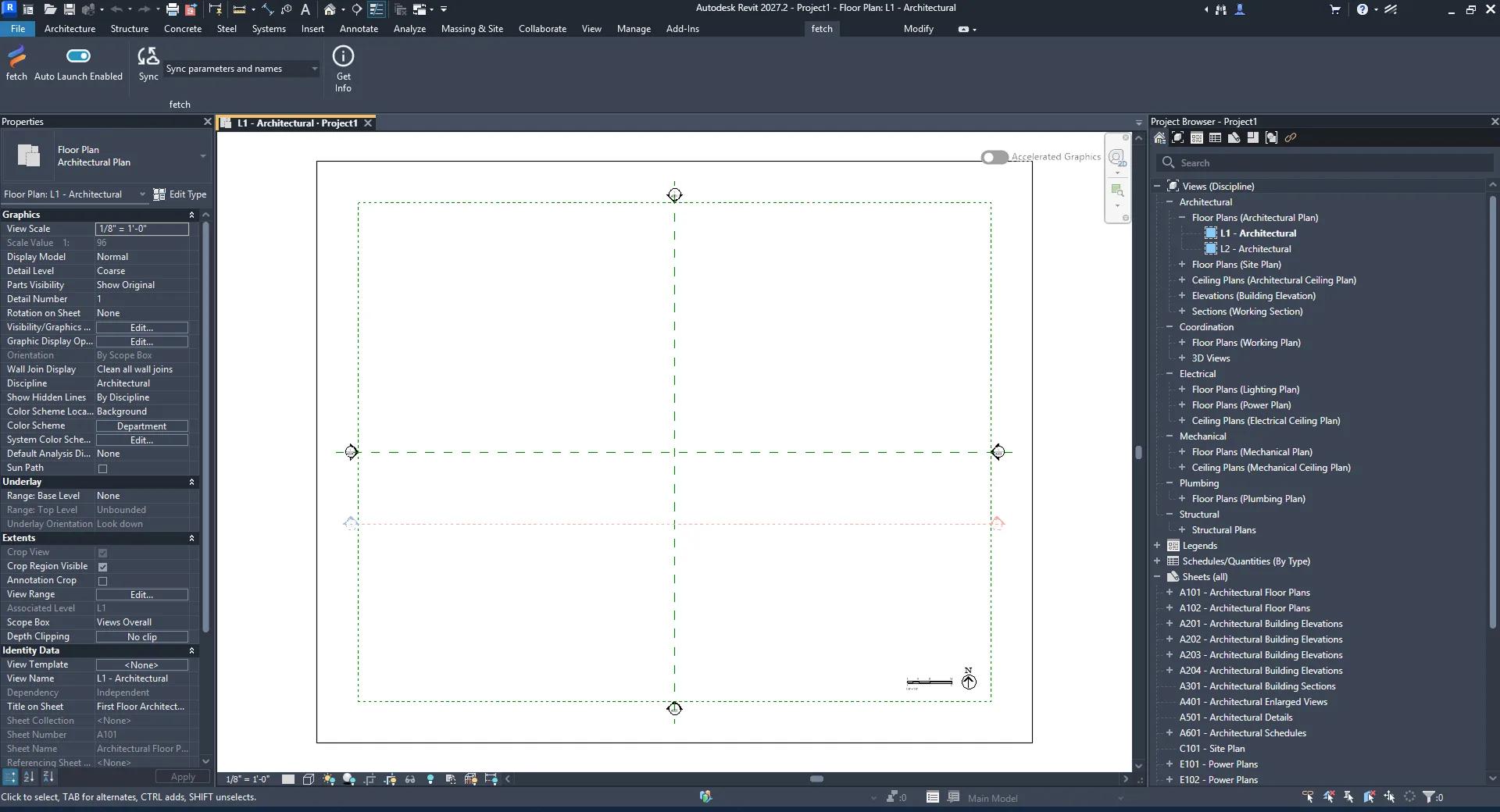
- You now have a Fetch tab on the Revit ribbon.
Was this page helpful?
Still stuck? Contact the Fetch team and tell us which page you were on.